All credits to shadowblade from the swordbattle forum for this post!
Forum Etiquette
The basic rule that comes to mind is to not be toxic. This is pretty straightforward. Avoid making any hurtful comments to other members on the forum. Try your best to be friendly to each other so everyone has a good time here.
If you would like to read more about forum rules (highly recommended for new users), then please read this detailed post made by gautam:
What can be considered misbehavior?
There are many things on this forum that can be considered bad. Please follow the guidelines to avoid getting in trouble. To summarize, be the force of good.
Notice
You should also not use alternative accounts to circumvent bans/silences, because this will make you untrusted and can get you IP banned. Please, just don’t do that.
 Instead, you should wait out your ban/silence.
Posting
This section provides a tutorial on how to use the forum. Click the buttons for more information.
Creating a Topic
···
To create a new topic, click on the New Topic button. Then, provide the category and tag. You must select a category to post.
If you are posting in #offtopic , than you will have to wait for staff to approve your post.
If you have the #askcommunity tag, than you will have created a solvable post.
Information about categories
We have many categories here on this forum. Always choose the best topic before posting. If you’re post fits the rules but doesn’t go in any other category, use the Off-Topic category.
A small suggestion: Before posting, you should pause and consider if it would bring any meaning. Ideally, a post should spark a conversation of some sort.
Creating a Reply
···
To reply to a post, press the Reply button, then provide your reply.
Information about creating replies:
When creating replies, it is important to note that they should contribute to the conversation. You should be the force of good. Do not start anything bad, or you will not be trusted. When you are replying to a user, this is normal. However, when you reply to them many times, you should consider moving to a personal message or personal chat.
Tools
···
Quoting
To quote a post, select the post with your cursor. Than, press Quote or Q.
Mentioning
To mention a user, type in @ than the user you want, @username.
Editing
If you made a mistake, press the pencil button on one of your posts to edit it. If a post is wiki, you can also edit it like that.
Oneboxing
To onebox a link, put a link by itself, like this:
https://google.com
Emojis
To use emojis, type in : then select your emoji. Example – 
Markdown
I would recommend reading this guide to learn more about Markdown. Markdown can help with formatting posts.
Solving Topics
If a post has question, #bug, #ask-community, etc. then you will be able to solve them as a TL3. If you are new, then you will only be able to solve your own posts. Once a reply on a topic has been selected as the “Solution” (indicated by a green checkbox), the topic will close automatically. Please don’t mark replies that are irrelevant to the question being asked as the solution. Otherwise, this may cause issues and leave the question unsolved.
Forum Navigation
Click here to learn more about the forum.
···
Home Screen
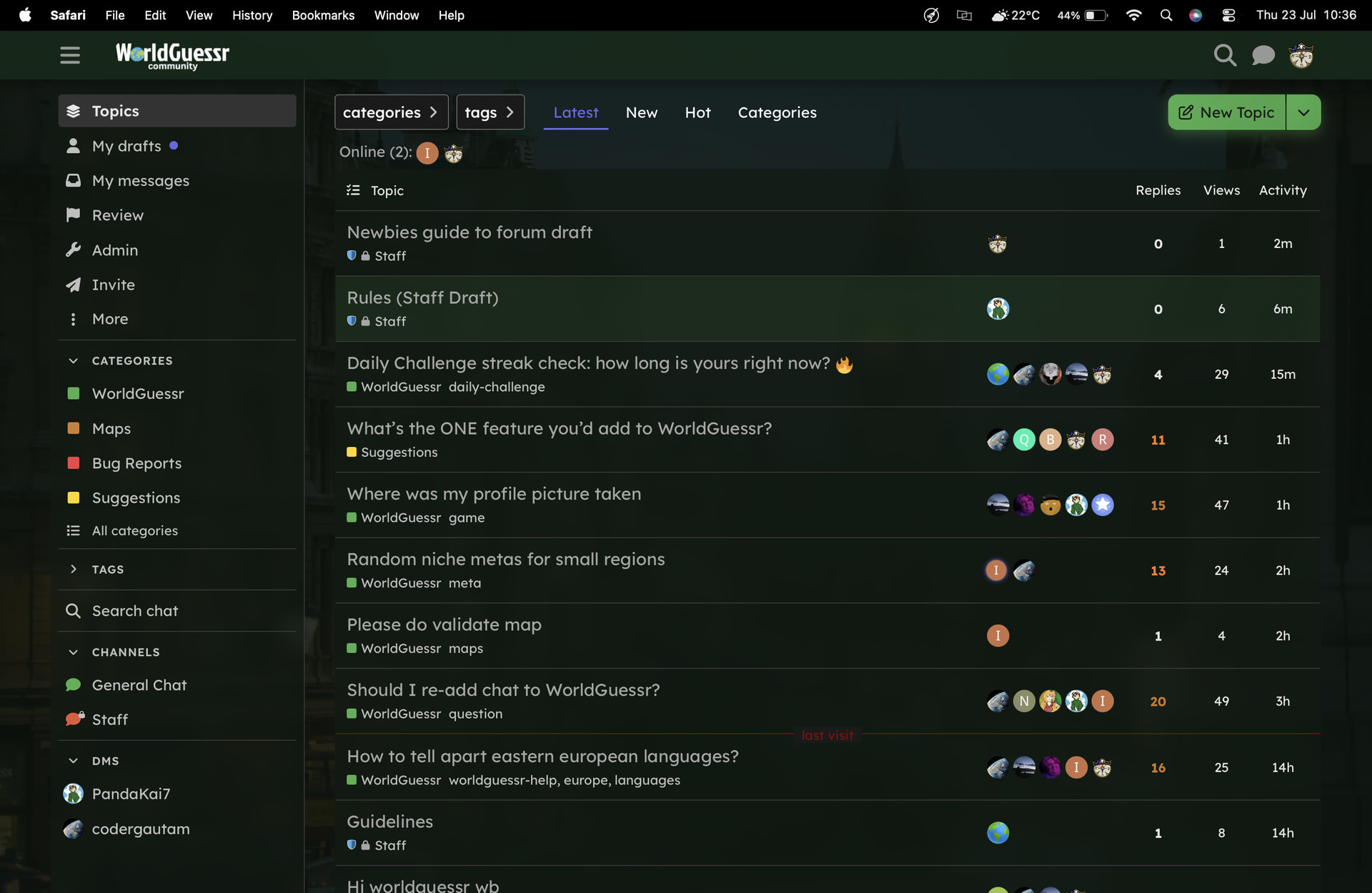
This is the screen you are greeted with once you enter the forum’s home page. It can be used to see the latest topics, new and unread topics, and the top topics over a selected period of time. You can also see who’s online at the moment.
Latest
In this section of the forum, you will see all the latest topics created. You can sort by the following:
- Replies
- Views
- Activity
Click once to see topics with the most of that statistic.
Click twice to see topics with the least of that statistic.
New
In this section, you will see new topics that you have not seen yet. To dismiss, click Dismiss New.
Unread
In this section, you will see topics that you have seen, but not fully read yet. To dismiss, click Dismiss…
Trending
In this section, you will see topics that have had the most activity for the selected time period. Click the time selector to change the trending topics for that time period.
Reading
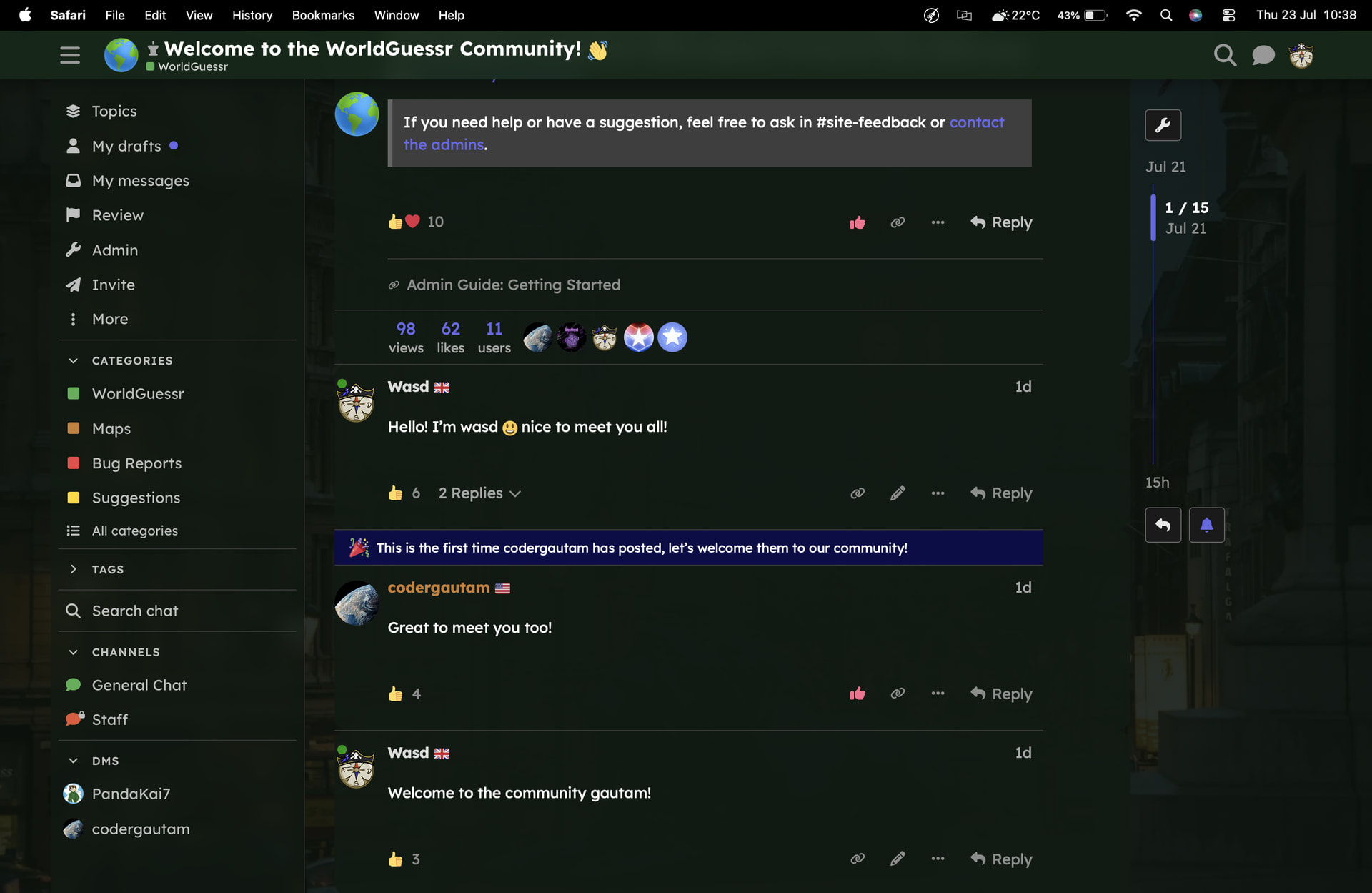
While reading posts, you will notice that you can do a few things here:
- To like a post, click the thumbs up icon.
- To react to a post, hover over the like button, than select the reaction you want.
- If you want to share a link to a topic/post, click the link button.
- If you want to save a post for later, bookmark it.
Flagging
If the post is NASTY, flag it. It can be helpful to staff to flag it.
You can personal message the user about their post, flag it for the violation that you think is needed, or flag it for staff attention.
Notifications
Checking for notifications
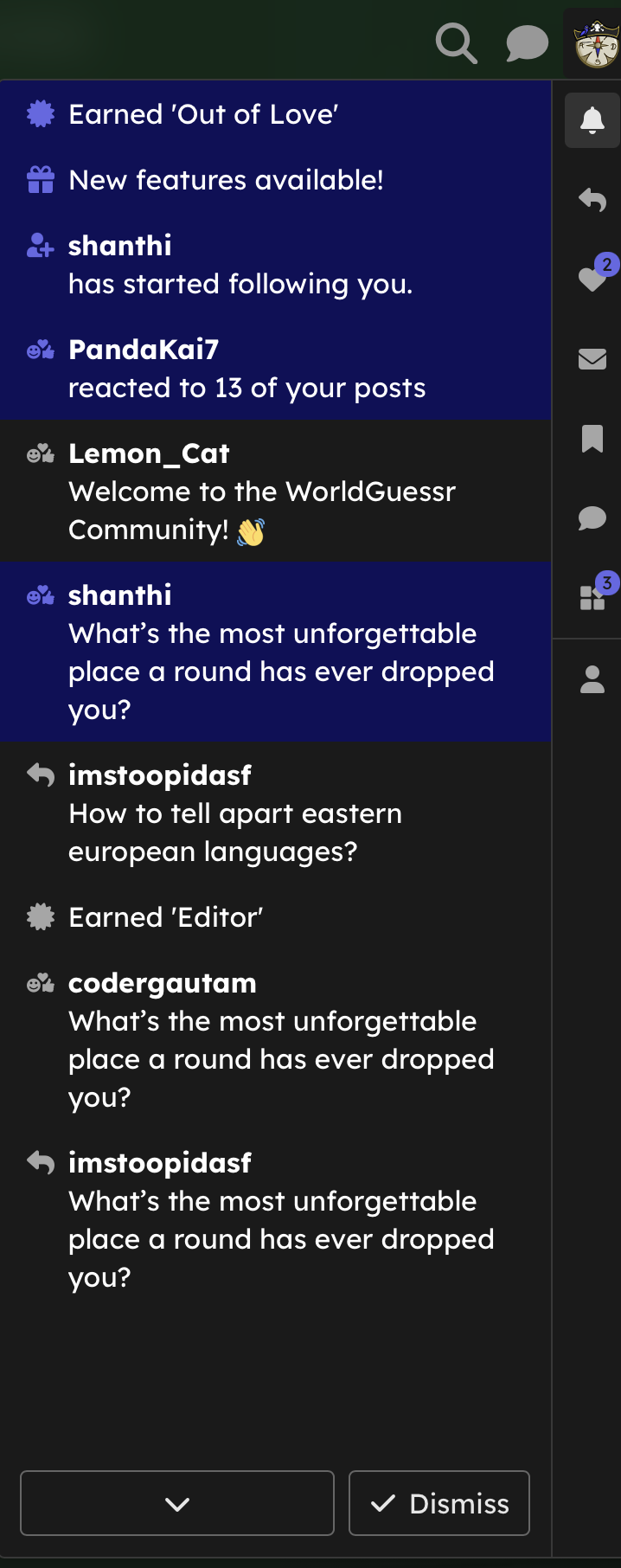
Click on the user profile on the top right corner, you will see your forum notifications.
Filtering notifications
If you do not wish to be heard about a topic or want to hear more about it, you can change this setting at the bottom (or on the side)
Other users
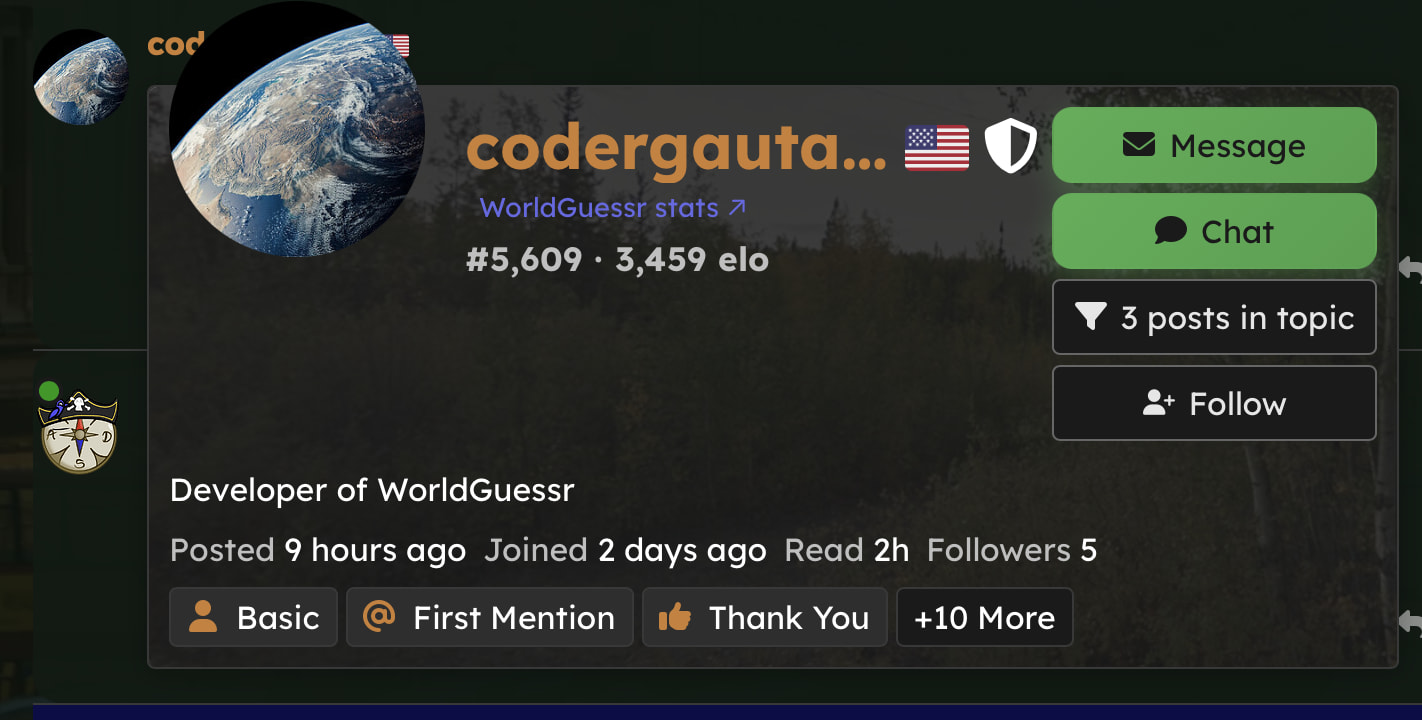
When you click a user, you will see this usercard:
Following
To follow a user, press the Follow Button. You will receive notifications from this user now.
Direct messages
Press chat to start a direct, personal chat with another user. You will be brought to an interface and from there you can chat w@twofoursixeightForumth others.
Ad@tw@twofoursixeightForumfoursixeigh@twofoursixeigh@twofoursixeightitional @twofoursixeightForum Guides
Sidebar Guide by @twofoursixeight:
Chat guide:
Guide to Trust Levels:
Rewards
By participating in theforum for long enough, you will gain trust levels and badges. Badges are rewarded when you earn a trust level / do a specific action. These are rewards for contributing to our forum. By doing this, it shows you are a supported member of the community. This ensures that people know you are a trustworthy member of the community, and can help others more often.

